Steps
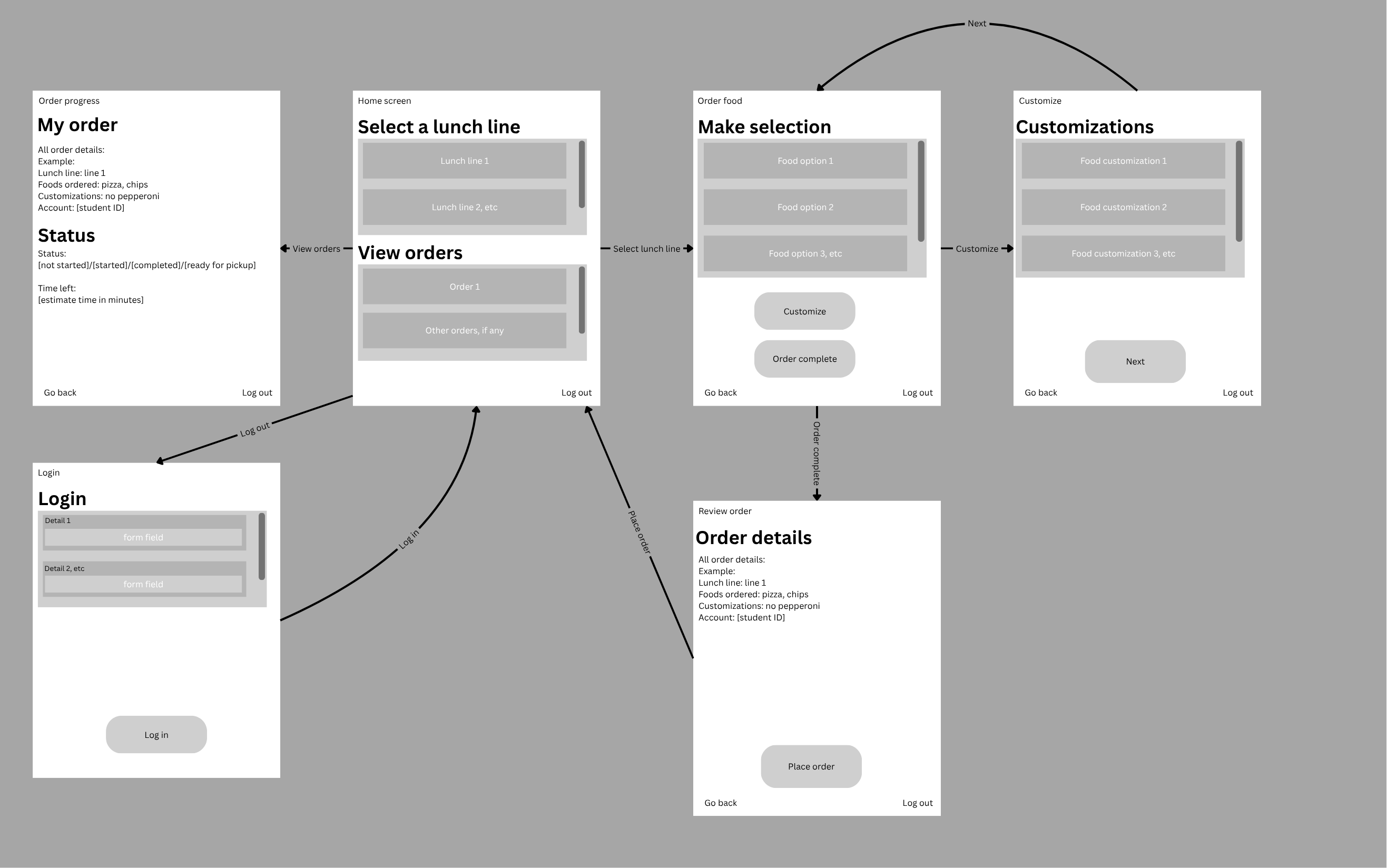
The core function will be responsible for saving user food selections and customizations to the order.
Code:
// --- Order ---
// order should be a list that contains the foods. each food would be its own object in javascript with an attribute that is a list, this list in the attribute would be the customizations
var order = null;
function addToOrder(food) {
  // Add food and customizations to the order variable
  console.log("Added " + food + " to order");
}Features:
Functions
login() for loginsgetOrder(orderID) to view order detailsaddToOrder(food, orderID) to save a food to an orderremoveFromOrder(food, orderID) to remove a food from an ordercompleteOrder(orderID) to submit an orderdisplayFoods(lunchLine) to show the food for each lunch lineshowCustomizations(food) to show customizations specific to foodsetCurrentFood(food) to save current food and addCustomization(customization) to add customization to food objectlogout() for logoutPrompt:
How would I make the login function run with the values the user supplies into the input fields? This is for login validation in my web prototype for an app that allows students to order school lunch at school. You must include detailed, step-by-step comments in the JavaScript explaining what each line of code does so I can learn from it and debug it if necessary

<div id="login-screen" class="screen">
    <div class="header">
        <div>Placeholder Login Screen</div>
    </div>
    <div style="margin-bottom: 1.25rem;">
        <div class="panel-title">Sign In</div>
        <label style="display: block; margin-bottom: 0.3rem;">Username / Account ID</label>
        <input type="text" id="username-input" placeholder="Enter username" style="margin-bottom: 1rem; width: 90%;">
        <label style="display: block; margin-bottom: 0.3rem;">Password</label>
        <input type="password" id="password-input" placeholder="Enter password" style="margin-bottom: 1.25rem; width: 90%;">
    </div>
    <button class="btn" onclick="login(username-input, password-input)">Placeholder Log In</button>
</div>
Response:
Updated HTML:
<div id="login-screen" class="screen">
    <div class="header">
        <div>Placeholder Login Screen</div>
    </div>
    <div style="margin-bottom: 1.25rem;">
        <div class="panel-title">Sign In</div>

        <label style="display: block; margin-bottom: 0.3rem;">Username / Account ID</label>
        <input type="text" id="username-input" placeholder="Enter username" style="margin-bottom: 1rem; width: 90%;">

        <label style="display: block; margin-bottom: 0.3rem;">Password</label>
        <input type="password" id="password-input" placeholder="Enter password" style="margin-bottom: 1.25rem; width: 90%;">
    </div>

    <button class="btn" onclick="login()">Placeholder Log In</button>
</div>

Updated Javascript:
function login() {
  // 1. Locate the HTML input elements on the page using their unique ID attributes
  const usernameElement = document.getElementById('username-input');
  const passwordElement = document.getElementById('password-input');

  // 2. Extract the actual text typed by the user using the .value property
  const username = usernameElement.value;
  const password = passwordElement.value;

  // 3. Trim extra whitespace surrounding the input to avoid accidental space errors
  const cleanUsername = username.trim();
  const cleanPassword = password.trim();

  // 4. Basic Validation: Check if either field was left empty
  if (cleanUsername === '' || cleanPassword === '') {
    // Display an error message if missing information
    alert('Please enter both your Username and Password.');
    return; // Exit the function early so no further logic runs
  }

  // 5. Console logging for debugging (open your browser DevTools Console to inspect)
  console.log('--- Login Attempt Debug Info ---');
  console.log('User Input Username:', cleanUsername);
  console.log('User Input Password:', cleanPassword);

  // 6. Login Validation Logic (Placeholder for web app prototype)
  // In a real application, you would send cleanUsername & cleanPassword to a backend server.
  if (cleanUsername === 'student123' && cleanPassword === 'lunchpass') {
    alert('Login successful! Welcome to the Lunch Ordering Portal.');

    // Optional: Clear the input fields after successful login
    usernameElement.value = '';
    passwordElement.value = '';
  } else {
    alert('Invalid username or password. Please try again.');
  }
}
Note: I had to customize the code to include the navigation and a variable assignment
Prompt:
Currently, the lunch lines displayed in my app are static. However in my app script, I have 2 lunch line objects (from a class I made) stored in the variable lines that represents all the lunch lines. Can you help me modify my app so that the lunch lines displayed are not static but based on the variable lines?

I'm attaching my current html and javascript, then I'll detail how I want to dynamic changes to be made.

HTML:
<div id="home-screen" class="screen active">
    <div class="header">
        <div>Placeholder App Title</div>
        <button class="btn" onclick="navigate('logout-prompt')">Placeholder Log Out</button>
    </div>

    <div class="panel-title">Placeholder Lunch Lines Title</div>
    <div class="panel" id="lunch-lines-panel">
        <div class="list-item" onclick="navigate('order-food-screen')">Placeholder Line Item 1</div>
        <div class="list-item" onclick="navigate('order-food-screen')">Placeholder Line Item 2</div>
        <div class="list-item" onclick="navigate('order-food-screen')">Placeholder Line Item 3</div>
    </div>

    <div class="panel-title">Placeholder Orders Title</div>
    <div class="panel" id="orders-panel">
        <div class="list-item" onclick="navigate('order-detail-screen')">Order #1000 - Placeholder Line Item 1</div>
        <div class="list-item" onclick="navigate('order-detail-screen')">Order #1001 - Placeholder Line Item 2</div>
        <div class="list-item" onclick="navigate('order-detail-screen')">Order #1002 - Placeholder Line Item 3</div>
    </div>
</div>

Javascript:
// Add lunch lines to a variable
var lines = [centerLine, rightLine];

Note: for your javascript, you must include detailed, step-by-step comments in the JavaScript explaining what each line of code does so I can learn from it and debug it if necessary.

Details: centerLine and rightLine are objects of the class LunchLine. LunchLine has an attribute name. That is what I want to be displayed for each object in lines.
Response:
HTML:
<div id="home-screen" class="screen active">
    <div class="header">
        <div>Placeholder App Title</div>
        <button class="btn" onclick="navigate('logout-prompt')">Placeholder Log Out</button>
    </div>

    <div class="panel-title">Placeholder Lunch Lines Title</div>
    <div class="panel" id="lunch-lines-panel"></div>

    <div class="panel-title">Placeholder Orders Title</div>
    <div class="panel" id="orders-panel">
        <div class="list-item" onclick="navigate('order-detail-screen')">Order #1000 - Placeholder Line Item 1</div>
        <div class="list-item" onclick="navigate('order-detail-screen')">Order #1001 - Placeholder Line Item 2</div>
        <div class="list-item" onclick="navigate('order-detail-screen')">Order #1002 - Placeholder Line Item 3</div>
    </div>
</div>

Javascript:
// Function to dynamically render all lunch lines into the UI
function renderLunchLines() {
  // 1. Locate and store the container element from HTML using its ID
  const linesPanel = document.getElementById('lunch-lines-panel');

  // 2. Clear out any existing HTML content inside the panel container
  linesPanel.innerHTML = '';

  // 3. Loop over each LunchLine object stored inside the 'lines' array
  lines.forEach(function(line) {
    // 4. Create a brand new HTML <div> element in memory for this lunch line
    const lineItem = document.createElement('div');

    // 5. Add the 'list-item' CSS class so it matches your app's existing styling
    lineItem.classList.add('list-item');

    // 6. Set the visible text inside the div to the '.name' property of the LunchLine object
    lineItem.textContent = line.name;

    // 7. Attach an onclick event attribute so clicking this item calls your navigate function
    lineItem.setAttribute('onclick', "navigate('order-food-screen')");

    // 8. Append the completed <div> element into the lunch lines panel on the screen
    linesPanel.appendChild(lineItem);
  });
}

// 9. Execute the function to populate the list when the page loads
renderLunchLines();
Note: I did not have to make any changes, the code provided worked on first try.
Prompt:
Currently, the foods displayed in my app are static for each lunch line. However in my app script, I have multiple food objects (from a class I made). The LunchLine class has an attribute menu, which is a list. The two lunch lines centerLine and rightLine each has its own menu with the food objects in its menu list. Can you help me modify my app so that the food displayed are not static but based on the selected lunch line?

I'm attaching my current html.

HTML:
<div id="order-food-screen" class="screen">
    <div class="header">
        <button class="btn" onclick="navigate('home-screen')">Placeholder Go Back</button>
        <div>Placeholder Order Food Screen</div>
        <button class="btn" onclick="navigate('logout-prompt')">Placeholder Log Out</button>
    </div>

    <div class="panel-title">Placeholder Food Selection</div>
    <div class="panel" id="food-options-panel">
        <div class="list-item selected">Placeholder Food Option 1</div>
        <div class="list-item">Placeholder Food Option 2</div>
        <div class="list-item">Placeholder Food Option 3</div>
        <div class="list-item">Placeholder Food Option 4</div>
    </div>

    <div style="margin-bottom: 1.25rem;">
        <button class="btn" onclick="navigate('customize-screen')">Placeholder Customize</button>
    </div>

    <div class="panel-title">Order Contents</div>
    <div class="panel" id="order-contents-panel" style="background-color: #ffffff;">
        <div class="order-content-item">
            <div>
                <strong>Placeholder Food Option 1</strong>
                <ul style="margin-top: 0.5rem; margin-bottom: 0; padding-left: 1.25rem;">
                    <li>Placeholder Customization 1</li>
                    <li>Placeholder Customization 2</li>
                </ul>
            </div>
            <button class="delete-btn">X Delete</button>
        </div>
    </div>

    <div style="display: flex; justify-content: flex-end; margin-top: 1.25rem;">
        <button class="btn" onclick="navigate('order-complete-screen')">Placeholder Order Complete</button>
    </div>
</div>

Note: for your javascript, you must include detailed, step-by-step comments in the JavaScript explaining what each line of code does so I can learn from it and debug it if necessary.
Response:
HTML:
<div id="order-food-screen" class="screen">
    <div class="header">
        <button class="btn" onclick="navigate('home-screen')">Placeholder Go Back</button>
        <div>Placeholder Order Food Screen</div>
        <button class="btn" onclick="navigate('logout-prompt')">Placeholder Log Out</button>
    </div>

    <div class="panel-title">Placeholder Food Selection</div>

    <div class="panel" id="food-options-panel"></div>

    <div style="margin-bottom: 1.25rem;">
        <button class="btn" onclick="navigate('customize-screen')">Placeholder Customize</button>
    </div>

    <div class="panel-title">Order Contents</div>
    <div class="panel" id="order-contents-panel" style="background-color: #ffffff;">
        <div class="order-content-item">
            <div>
                <strong>Placeholder Food Option 1</strong>
                <ul style="margin-top: 0.5rem; margin-bottom: 0; padding-left: 1.25rem;">
                    <li>Placeholder Customization 1</li>
                    <li>Placeholder Customization 2</li>
                </ul>
            </div>
            <button class="delete-btn">X Delete</button>
        </div>
    </div>

    <div style="display: flex; justify-content: flex-end; margin-top: 1.25rem;">
        <button class="btn" onclick="navigate('order-complete-screen')">Placeholder Order Complete</button>
    </div>
</div>

Javascript part 1:
// 1. Declare a variable to store whichever LunchLine object the user clicks on
let selectedLine = null;

// 2. Declare a variable to track the currently selected food item
let selectedFood = null;

// 3. Updated function to handle choosing a lunch line from the home screen
function selectLunchLine(lineObject) {
  // Store the chosen LunchLine object into our global variable
  selectedLine = lineObject;

  // Render the food options for this specific lunch line
  renderFoodOptions();

  // Navigate to the food ordering screen
  navigate('order-food-screen');
}

// 4. Function to render food items dynamically based on 'selectedLine'
function renderFoodOptions() {
  // Locate the HTML panel container where food items will be displayed
  const foodPanel = document.getElementById('food-options-panel');

  // Clear out any previous food items inside the panel
  foodPanel.innerHTML = '';

  // Guard clause: check if a line has been selected and if it contains a menu array
  if (!selectedLine || !selectedLine.menu) {
    console.error('No valid lunch line selected or menu is missing!');
    return;
  }

  // Loop through each food object stored inside the selected line's .menu array
  selectedLine.menu.forEach(function(food, index) {
    // Create a new <div> element to represent the food option in the list
    const foodItem = document.createElement('div');

    // Add the CSS class 'list-item' to match existing app styling
    foodItem.classList.add('list-item');

    // Display the food's name (assuming your Food class has a 'name' property)
    foodItem.textContent = food.name;

    // Attach a click event listener to select this specific food item when clicked
    foodItem.addEventListener('click', function() {
      // Remove the 'selected' CSS class from all food items in the list
      const allItems = foodPanel.querySelectorAll('.list-item');
      allItems.forEach(item => item.classList.remove('selected'));

      // Add the 'selected' CSS class to the specific food item that was clicked
      foodItem.classList.add('selected');

      // Store the clicked food object in our variable for customization/ordering
      selectedFood = food;
      console.log('Currently selected food:', selectedFood);
    });

    // Automatically highlight the first food item in the list as selected by default
    if (index === 0) {
      foodItem.classList.add('selected');
      selectedFood = food; // Set initial selected food
    }

    // Append the newly created food item element into the food options panel
    foodPanel.appendChild(foodItem);
  });
}

Javascript part 2:
// Example updated loop from your home screen rendering script:
lines.forEach(function(line) {
  const lineItem = document.createElement('div');
  lineItem.classList.add('list-item');
  lineItem.textContent = line.name;

  // Pass the actual LunchLine object to selectLunchLine when clicked
  lineItem.addEventListener('click', function() {
    selectLunchLine(line);
  });

  linesPanel.appendChild(lineItem);
});
Note: The foods do not show anymore when I click on a lunch line, I'm going to fix that. It's fixed now.
Prompt:
Great, now as you can see in the code, each food has some possible customizations and a property required that is either true or false. If required is true, that means the food must have at least one customization at all times. If required is false, that means the food can have as many or few customizations possible. For all foods, multiple customizations can be selected.

Currently, the website statically displays the same customizations for all foods. Modify it to be dynamic based on the customizations stored in the food object selected.

I'm attaching the current HTML:
<div id="customize-screen" class="screen">
    <div class="header">
        <button class="btn" onclick="navigate('order-food-screen')">Placeholder Go Back</button>
        <div>Placeholder Customize Screen</div>
        <button class="btn" onclick="navigate('logout-prompt')">Placeholder Log Out</button>
    </div>

    <div class="panel-title">Placeholder Customizations</div>
    <div class="panel" id="customizations-panel">
        <div class="list-item selected">Placeholder Customization 1</div>
        <div class="list-item selected">Placeholder Customization 2</div>
        <div class="list-item">Placeholder Customization 3</div>
        <div class="list-item">Placeholder Customization 4</div>
    </div>

    <div style="display: flex; justify-content: flex-end; margin-top: 1.25rem;">
        <button class="btn" onclick="navigate('order-food-screen')">Placeholder Next</button>
    </div>
</div>

Note: for your javascript, you must include detailed, step-by-step comments in the JavaScript explaining what each line of code does so I can learn from it and debug it if necessary.
Response:
HTML part 1:
<div id="customize-screen" class="screen">
    <div class="header">
        <button class="btn" onclick="navigate('order-food-screen')">Placeholder Go Back</button>
        <div>Placeholder Customize Screen</div>
        <button class="btn" onclick="navigate('logout-prompt')">Placeholder Log Out</button>
    </div>

    <div class="panel-title">Placeholder Customizations</div>

    <div class="panel" id="customizations-panel"></div>

    <div style="display: flex; justify-content: flex-end; margin-top: 1.25rem;">
        <button class="btn" onclick="confirmCustomizations()">Placeholder Next</button>
    </div>
</div>

HTML part 2:
<div style="margin-bottom: 1.25rem;">
    <button class="btn" onclick="openCustomizeScreen()">Placeholder Customize</button>
</div>

Javascript:
// Global array to store the active Customization objects chosen by the user
let activeCustomizations = [];

// Function to trigger opening the customize screen for the selected food
function openCustomizeScreen() {
  // 1. Check if a food item has actually been selected first
  if (!selectedFood) {
    alert("Please select a food item first!");
    return;
  }

  // 2. Clear out any leftover selections from previous food choices
  activeCustomizations = [];

  // 3. If required is true, pre-select the first customization by default so at least 1 is active
  if (selectedFood.required && selectedFood.customizations.length > 0) {
    activeCustomizations.push(selectedFood.customizations[0]);
  }

  // 4. Render the customization DOM elements dynamically
  renderCustomizations();

  // 5. Navigate to the customization screen
  navigate('customize-screen');
}

// Function to build and render customization elements into the HTML panel
function renderCustomizations() {
  // 1. Get the container element from the DOM using its ID
  const panel = document.getElementById('customizations-panel');

  // 2. Clear any static placeholder HTML content inside the container
  panel.innerHTML = '';

  // 3. Guard clause: Ensure selectedFood exists and has customizations defined
  if (!selectedFood || !selectedFood.customizations) {
    console.error('No valid food selected or food lacks customizations!');
    return;
  }

  // 4. Loop through each Customization object in selectedFood.customizations
  selectedFood.customizations.forEach(function(customization) {
    // 5. Create a new <div> element for the customization option
    const item = document.createElement('div');

    // 6. Add the CSS class 'list-item' for consistent styling
    item.classList.add('list-item');

    // 7. Set the text inside the div to the name of the customization
    item.textContent = customization.name;

    // 8. Check if this customization is currently in our activeCustomizations list
    const isSelected = activeCustomizations.includes(customization);

    // 9. If selected, apply the 'selected' CSS highlight class
    if (isSelected) {
      item.classList.add('selected');
    }

    // 10. Add a click event listener to handle toggling choices on and off
    item.addEventListener('click', function() {
      // Find the index of this customization in our active choices array
      const index = activeCustomizations.indexOf(customization);

      // If index > -1, the customization is ALREADY selected and the user is trying to DESELECT it
      if (index > -1) {
        // Enforce required rule: block unselection if required is true AND only 1 option remains active
        if (selectedFood.required && activeCustomizations.length === 1) {
          alert('This item requires at least one customization to be selected.');
          return; // Stop execution so the item remains selected
        }

        // Remove the customization from active choices array
        activeCustomizations.splice(index, 1);

        // Remove the visual selection highlight from the DOM element
        item.classList.remove('selected');
      }
      // Otherwise, the user is selecting a NEW customization option
      else {
        // Add the customization object to our active choices array
        activeCustomizations.push(customization);

        // Add the visual selection highlight to the DOM element
        item.classList.add('selected');
      }

      // Console log active choices for debugging
      console.log('Current Active Customizations:', activeCustomizations);
    });

    // 11. Append the created <div> element into the customizations panel
    panel.appendChild(item);
  });
}

// Function to validate choice requirements before leaving the customization screen
function confirmCustomizations() {
  // 1. Validation check: If food requires customizations but zero are selected
  if (selectedFood.required && activeCustomizations.length === 0) {
    alert('Please select at least one customization before continuing.');
    return; // Exit without navigating
  }

  // 2. Debug log confirming user selections
  console.log('Confirmed order item:', selectedFood.name, 'with:', activeCustomizations);

  // 3. Return to food ordering screen after successful validation
  navigate('order-food-screen');
}
Note: the code worked on the first try, as is.
Prompt:
I have added these two classes to the script:
class OrderFood {
  constructor(name, customizations) {
    this.name = name;
    this.customizations = customizations;
  }

  addCustomization(customizations) {
    if (customizations.length != 0) {
      for (const customization of customizations) {
        this.customizations.push(customization);
      }
    }
  }
}

class Order {
  constructor(id) {
    this.id = id;
    this.foods = [];
  }

  addToOrder(food) {
    // Add to food
    this.foods.push(food);
  }

  removeFromOrder(food) {
    // Get index
    const index = this.foods.indexOf(food);
    // Remove val at index
    if (index > -1) {
    	this.foods.splice(index, 1);
    }
  }
}

Now, when a food is selected, I want it to be saved to the order. If the food is customized, then I want the chosen customization objects when the user clicks next on the customization screen to be added to the food in the order. I want the food and any customizations to be displayed each time the order is displayed on the order food screen.

Here is my current HTML:
<div id="order-food-screen" class="screen">
    <div class="header">
        <button class="btn" onclick="navigate('home-screen')">Placeholder Go Back</button>
        <div>Placeholder Order Food Screen</div>
        <button class="btn" onclick="navigate('logout-prompt')">Placeholder Log Out</button>
    </div>

    <div class="panel-title">Placeholder Food Selection</div>

    <div class="panel" id="food-options-panel"></div>

    <div style="margin-bottom: 1.25rem;">
    <button class="btn" onclick="openCustomizeScreen()">Placeholder Customize</button>
</div>

    <div class="panel-title">Order Contents</div>
    <div class="panel" id="order-contents-panel" style="background-color: #ffffff;">
        <div class="order-content-item">
            <div>
                <strong>Placeholder Food Option 1</strong>
                <ul style="margin-top: 0.5rem; margin-bottom: 0; padding-left: 1.25rem;">
                    <li>Placeholder Customization 1</li>
                    <li>Placeholder Customization 2</li>
                </ul>
            </div>
            <button class="delete-btn">X Delete</button>
        </div>
    </div>

    <div style="display: flex; justify-content: flex-end; margin-top: 1.25rem;">
        <button class="btn" onclick="navigate('order-complete-screen')">Placeholder Order Complete</button>
    </div>
</div>

<div id="customize-screen" class="screen">
    <div class="header">
        <button class="btn" onclick="navigate('order-food-screen')">Placeholder Go Back</button>
        <div>Placeholder Customize Screen</div>
        <button class="btn" onclick="navigate('logout-prompt')">Placeholder Log Out</button>
    </div>

    <div class="panel-title">Placeholder Customizations</div>

    <div class="panel" id="customizations-panel"></div>

    <div style="display: flex; justify-content: flex-end; margin-top: 1.25rem;">
        <button class="btn" onclick="confirmCustomizations()">Placeholder Next</button>
    </div>
</div>

Note: for your javascript, you must include detailed, step-by-step comments in the JavaScript explaining what each line of code does so I can learn from it and debug it if necessary.
Response
HTML:
<div id="order-food-screen" class="screen">
    <div class="header">
        <button class="btn" onclick="navigate('home-screen')">Placeholder Go Back</button>
        <div>Placeholder Order Food Screen</div>
        <button class="btn" onclick="navigate('logout-prompt')">Placeholder Log Out</button>
    </div>

    <div class="panel-title">Placeholder Food Selection</div>

    <div class="panel" id="food-options-panel"></div>

    <div style="margin-bottom: 1.25rem;">
        <button class="btn" onclick="openCustomizeScreen()">Placeholder Customize</button>
    </div>

    <div class="panel-title">Order Contents</div>
    <div class="panel" id="order-contents-panel" style="background-color: #ffffff;"></div>

    <div style="display: flex; justify-content: flex-end; margin-top: 1.25rem;">
        <button class="btn" onclick="navigate('order-complete-screen')">Placeholder Order Complete</button>
    </div>
</div>

<div id="customize-screen" class="screen">
    <div class="header">
        <button class="btn" onclick="navigate('order-food-screen')">Placeholder Go Back</button>
        <div>Placeholder Customize Screen</div>
        <button class="btn" onclick="navigate('logout-prompt')">Placeholder Log Out</button>
    </div>

    <div class="panel-title">Placeholder Customizations</div>

    <div class="panel" id="customizations-panel"></div>

    <div style="display: flex; justify-content: flex-end; margin-top: 1.25rem;">
        <button class="btn" onclick="confirmCustomizations()">Placeholder Next</button>
    </div>
</div>

Javascript:
// 1. Initialize a global Order object to store the student's entire current order
const currentOrder = new Order(1001);

// 2. Track the active OrderFood object currently being selected or customized
let currentOrderFood = null;

// 3. Function to select a food item and add an OrderFood object to the current order
function selectFoodItem(food) {
  // Set the selected food definition object globally
  selectedFood = food;

  // Create a brand new OrderFood instance with an empty customizations list
  currentOrderFood = new OrderFood(food.name, []);

  // Add the newly created OrderFood instance to our global Order instance
  currentOrder.addToOrder(currentOrderFood);

  // Render the updated order contents list on the screen
  renderOrderContents();
}

// 4. Function to render food selection buttons dynamically
function renderFoodOptions() {
  // Locate the DOM panel element for food options
  const foodPanel = document.getElementById('food-options-panel');

  // Clear any existing elements inside the container
  foodPanel.innerHTML = '';

  // Return early if no line is selected or if the line has no menu items
  if (!selectedLine || !selectedLine.menu) {
    console.error('No valid lunch line selected or menu is missing!');
    return;
  }

  // Loop through each food object in the selected line's menu
  selectedLine.menu.forEach(function(food) {
    // Create a new <div> element for this food option
    const foodItem = document.createElement('div');

    // Add the CSS class 'list-item' for styling
    foodItem.classList.add('list-item');

    // Display the food name inside the element
    foodItem.textContent = food.name;

    // Attach a click event listener when the user chooses this food option
    foodItem.addEventListener('click', function() {
      // Remove visual selection styling from all food items
      const allItems = foodPanel.querySelectorAll('.list-item');
      allItems.forEach(item => item.classList.remove('selected'));

      // Add visual selection highlight class to the clicked element
      foodItem.classList.add('selected');

      // Process food selection and save it to the current order
      selectFoodItem(food);
    });

    // Append the created element into the food options panel
    foodPanel.appendChild(foodItem);
  });
}

// 5. Function called when clicking 'Placeholder Next' on the customize screen
function confirmCustomizations() {
  // Guard check: ensure food requires customizations if required property is true
  if (selectedFood.required && activeCustomizations.length === 0) {
    alert('Please select at least one customization before continuing.');
    return;
  }

  // Guard check: ensure we have an active OrderFood instance being edited
  if (currentOrderFood) {
    // Reset existing customizations on the active OrderFood item to avoid duplicate entries
    currentOrderFood.customizations = [];

    // Add all user-selected customization objects using the OrderFood class method
    currentOrderFood.addCustomization(activeCustomizations);
  }

  // Re-render the order contents screen to show updated customization lists
  renderOrderContents();

  // Navigate back to the food ordering screen
  navigate('order-food-screen');
}

// 6. Function to render the active Order contents into the DOM
function renderOrderContents() {
  // Locate the order contents panel container element in the HTML
  const orderPanel = document.getElementById('order-contents-panel');

  // If container doesn't exist on page, abort execution
  if (!orderPanel) return;

  // Clear out previous HTML content inside the panel
  orderPanel.innerHTML = '';

  // Display placeholder text if no food items exist in the order yet
  if (currentOrder.foods.length === 0) {
    orderPanel.innerHTML = '<div style="padding: 0.75rem; color: #777;">Your order is currently empty.</div>';
    return;
  }

  // Loop through every OrderFood object stored in currentOrder.foods array
  currentOrder.foods.forEach(function(orderFoodItem) {
    // Create wrapper <div> for an individual order entry
    const itemContainer = document.createElement('div');

    // Apply existing CSS class 'order-content-item' for layout styling
    itemContainer.classList.add('order-content-item');

    // Create a text container <div> for title and list
    const textDiv = document.createElement('div');

    // Create a <strong> element for the food item's name
    const titleElement = document.createElement('strong');

    // Set text to the OrderFood item's name
    titleElement.textContent = orderFoodItem.name;

    // Append title to text container
    textDiv.appendChild(titleElement);

    // Check if this OrderFood item has any customizations attached
    if (orderFoodItem.customizations && orderFoodItem.customizations.length > 0) {
      // Create an unordered list <ul> to present customizations
      const customList = document.createElement('ul');

      // Add inline styling matching original template design
      customList.style.marginTop = '0.5rem';
      customList.style.marginBottom = '0';
      customList.style.paddingLeft = '1.25rem';

      // Loop through each Customization object attached to this OrderFood
      orderFoodItem.customizations.forEach(function(customization) {
        // Create a list item <li> for the customization name
        const li = document.createElement('li');

        // Set text to the customization name property
        li.textContent = customization.name;

        // Append <li> to the <ul> element
        customList.appendChild(li);
      });

      // Append filled <ul> list into the text container
      textDiv.appendChild(customList);
    }

    // Create a delete button element
    const deleteBtn = document.createElement('button');

    // Add existing CSS class 'delete-btn'
    deleteBtn.classList.add('delete-btn');

    // Set label text
    deleteBtn.textContent = 'X Delete';

    // Attach event listener to delete this specific OrderFood item on click
    deleteBtn.addEventListener('click', function() {
      // Call class method removeFromOrder to remove this item from currentOrder
      currentOrder.removeFromOrder(orderFoodItem);

      // Re-render order panel to update the UI
      renderOrderContents();
    });

    // Append text details and delete button into main item container
    itemContainer.appendChild(textDiv);
    itemContainer.appendChild(deleteBtn);

    // Append completed order item container into order contents panel
    orderPanel.appendChild(itemContainer);
  });
}
Note: There is a bug and I cannot see the saved order. After providing my entire javascript, the AI pointed out that I had accidentally used duplicate function definitions. I think if I properly implemented the AI generated code, it would work on first try as most of the AI generated code has worked so far.
Prompt:
I have made the following modifications to the script:
class Order {
  constructor(id) {
    this.id = id;
    this.foods = [];
    this.lunchline = null;
    this.user = null;
  }

  addToOrder(food) {
    this.foods.push(food);
  }

  removeFromOrder(food) {
    const index = this.foods.indexOf(food);
    if (index > -1) {
      this.foods.splice(index, 1);
    }
  }

  completeOrder() {
    this.lunchline = selectedLine;
    this.user = currentUser;
  }
}

// --- Account Credentials & Auth ---
const userID = "0";
const password = "test";
let loggedIn = false;
let currentUser = null;

function login() {
  const usernameElement = document.getElementById('username-input');
  const passwordElement = document.getElementById('password-input');

  const username = usernameElement.value;
  const enteredPassword = passwordElement.value;

  const cleanUsername = username.trim();
  const cleanPassword = enteredPassword.trim();

  if (cleanUsername === '' || cleanPassword === '') {
    alert('Please enter both your Username and Password.');
    return;
  }

  if (cleanUsername === userID && cleanPassword === password) {
    loggedIn = true;
    currentUser = cleanUsername;
    alert('Login successful! Welcome to the Lunch Ordering Portal.');
    navigate('home-screen');
    usernameElement.value = '';
    passwordElement.value = '';
  } else {
    alert('Invalid username or password. Please try again.');
  }
}

function logout() {
  loggedIn = false;
  currentUser = null;
  navigate("login-screen");
  alert("Logged out successfully");
}


These are to track the user who made an order. The review order screen displays static content, can you modify the website so that the content displayed is not static, and instead reflects the order?

Here's the current HTML:
<div id="order-complete-screen" class="screen">
    <div class="header">
        <button class="btn" onclick="navigate('order-food-screen')">Placeholder Go Back</button>
        <div>Placeholder Review Order Screen</div>
        <button class="btn" onclick="navigate('logout-prompt')">Placeholder Log Out</button>
    </div>

    <div class="panel-title">Order Details</div>
    <div class="panel" id="order-details-panel" style="background-color: #ffffff; height: auto; min-height: 10rem;">
        <div style="margin-bottom: 1.25rem;">
            <div><strong>Selected Lunch Line:</strong> <span>Placeholder Line Item 1</span></div>
            <div><strong>Account Number:</strong> <span>Placeholder Account #12345</span></div>
        </div>

        <div style="border-top: 0.0625rem solid var(--color-border); padding-top: 0.625rem;" id="review-items-list">
            <div style="margin-bottom: 1rem;">
                <strong>Placeholder Food Option 1</strong>
                <ul style="margin-top: 0.25rem; margin-bottom: 0; padding-left: 1.25rem;">
                    <li>Placeholder Customization 1</li>
                    <li>Placeholder Customization 2</li>
                </ul>
            </div>
        </div>
    </div>

    <div style="display: flex; justify-content: flex-end; margin-top: 1.25rem;">
        <button class="btn" onclick="navigate('home-screen')">Placeholder Complete Order</button>
    </div>
</div>
Response:
HTML:
<div style="display: flex; justify-content: flex-end; margin-top: 1.25rem;">
    <button class="btn" onclick="openReviewOrderScreen()">Placeholder Order Complete</button>
</div>

<div id="order-complete-screen" class="screen">
    <div class="header">
        <button class="btn" onclick="navigate('order-food-screen')">Placeholder Go Back</button>
        <div>Placeholder Review Order Screen</div>
        <button class="btn" onclick="navigate('logout-prompt')">Placeholder Log Out</button>
    </div>

    <div class="panel-title">Order Details</div>
    <div class="panel" id="order-details-panel" style="background-color: #ffffff; height: auto; min-height: 10rem;">
        <div style="margin-bottom: 1.25rem;">
            <div><strong>Selected Lunch Line:</strong> <span id="review-lunch-line"></span></div>
            <div><strong>Account Number:</strong> <span id="review-account-number"></span></div>
        </div>

        <div style="border-top: 0.0625rem solid var(--color-border); padding-top: 0.625rem;" id="review-items-list"></div>
    </div>

    <div style="display: flex; justify-content: flex-end; margin-top: 1.25rem;">
        <button class="btn" onclick="submitFinalOrder()">Placeholder Complete Order</button>
    </div>
</div>

Javascript:
// Function to open and populate the order review screen
function openReviewOrderScreen() {
  // 1. Guard check: Ensure there is at least one item in the order before proceeding
  if (currentOrder.foods.length === 0) {
    alert("Your order is empty! Please select at least one food item before proceeding.");
    return;
  }

  // 2. Call the Order class method to associate the selected line and current user
  currentOrder.completeOrder();

  // 3. Render the dynamic details onto the review screen
  renderOrderReview();

  // 4. Navigate to the order review/complete screen
  navigate('order-complete-screen');
}

// Function to populate the DOM elements on the order review screen
function renderOrderReview() {
  // 1. Get DOM references for the text summary fields
  const lineSpan = document.getElementById('review-lunch-line');
  const userSpan = document.getElementById('review-account-number');
  const reviewListContainer = document.getElementById('review-items-list');

  // 2. Display lunch line name (falls back to placeholder string if null)
  if (lineSpan) {
    lineSpan.textContent = currentOrder.lunchline ? currentOrder.lunchline.name : 'N/A';
  }

  // 3. Display user/account ID (falls back to placeholder string if null)
  if (userSpan) {
    userSpan.textContent = currentOrder.user ? currentOrder.user : 'N/A';
  }

  // 4. Clear existing HTML inside the review list container
  if (!reviewListContainer) return;
  reviewListContainer.innerHTML = '';

  // 5. Loop through every OrderFood object stored inside currentOrder.foods
  currentOrder.foods.forEach(function(orderFoodItem) {
    // 6. Create a outer wrapper <div> for each food entry
    const foodWrapper = document.createElement('div');
    foodWrapper.style.marginBottom = '1rem';

    // 7. Create a <strong> element for the food title
    const foodTitle = document.createElement('strong');
    foodTitle.textContent = orderFoodItem.name;
    foodWrapper.appendChild(foodTitle);

    // 8. If the food item has customizations, create a <ul> list
    if (orderFoodItem.customizations && orderFoodItem.customizations.length > 0) {
      const customList = document.createElement('ul');
      customList.style.marginTop = '0.25rem';
      customList.style.marginBottom = '0';
      customList.style.paddingLeft = '1.25rem';

      // 9. Loop through each Customization object and append a <li> item
      orderFoodItem.customizations.forEach(function(customization) {
        const li = document.createElement('li');
        li.textContent = customization.name;
        customList.appendChild(li);
      });

      // 10. Append the customization list into the food wrapper
      foodWrapper.appendChild(customList);
    }

    // 11. Append the finished food wrapper into the main review panel container
    reviewListContainer.appendChild(foodWrapper);
  });
}

// Function to finalize the order and redirect home
function submitFinalOrder() {
  alert("Order submitted successfully!");

  // Optional: Reset order state for the next order
  currentOrder.foods = [];
  currentOrder.lunchline = null;

  // Navigate back to home screen
  navigate('home-screen');
}
Note: there was a bug in my HTML which led to the code generated by AI not working on first try.
Prompt:
I have made this modification to the Javascript:
let orders = [];

function submitFinalOrder() {
  orders.push(currentOrder);
  alert("Order submitted successfully!");

  // Reset order state for future orders
  currentOrder.foods = [];
  currentOrder.lunchline = null;

  navigate('home-screen');
}

Now, the orders in progress on the home screen are static. Can you make them depend on the orders saved?
Response:
HTML:
<div class="panel-title">Placeholder Orders Title</div>

<div class="panel" id="orders-panel"></div>

Javascript 1:
// --- Global Application State ---
let selectedLine = null;
let selectedFood = null;
let activeCustomizations = [];

// CHANGE FROM const TO let:
let currentOrder = new Order(1001);

let currentOrderFood = null;
let orders = []; // Global array to store submitted orders

Javascript 2:
// Function to dynamically render submitted orders on the home screen
function renderActiveOrders() {
  // 1. Locate the container element for active orders in the HTML
  const ordersPanel = document.getElementById('orders-panel');
  if (!ordersPanel) return;

  // 2. Clear any old content to prevent duplicate lists from piling up
  ordersPanel.innerHTML = '';

  // 3. Display a friendly message if the user hasn't made any orders yet
  if (orders.length === 0) {
    ordersPanel.innerHTML = '<div style="padding: 0.75rem; color: #777;">No active orders yet.</div>';
    return;
  }

  // 4. Loop through every saved Order object in our 'orders' array
  orders.forEach(function(savedOrder) {
    // 5. Create a new <div> element for the order list item
    const orderItem = document.createElement('div');
    orderItem.classList.add('list-item');

    // 6. Safely grab the lunch line name (use a fallback if missing)
    const lineName = savedOrder.lunchline ? savedOrder.lunchline.name : 'Unknown Line';

    // 7. Set the display text to show the Order ID and Lunch Line
    orderItem.textContent = 'Order #' + savedOrder.id + ' - ' + lineName;

    // 8. Attach a click event listener to open the progress/detail screen
    orderItem.addEventListener('click', function() {
      // For now, this just navigates to your static detail screen.
      // (Later, you can pass 'savedOrder' to dynamically populate that screen too!)
      navigate('order-detail-screen');
    });

    // 9. Append the finished list item into the UI panel
    ordersPanel.appendChild(orderItem);
  });
}

// Updated function to finalize and save the order
function submitFinalOrder() {
  // 1. Save the finished order reference into the orders array
  orders.push(currentOrder);
  alert("Order submitted successfully!");

  // 2. Generate a new ID for the NEXT order (e.g., 1001 becomes 1002)
  const nextId = currentOrder.id + 1;

  // 3. Instead of clearing arrays, replace currentOrder with a completely NEW object
  // This preserves the old order safely inside the 'orders' array!
  currentOrder = new Order(nextId);

  // 4. Re-attach the currently logged-in user to the new order
  currentOrder.user = currentUser;

  // 5. Re-render the orders panel so the newly submitted order appears instantly
  renderActiveOrders();

  // 6. Navigate back to the home screen
  navigate('home-screen');
}

Javascript 3:
// --- Page Initialization ---
document.addEventListener('DOMContentLoaded', function() {
  if (loggedIn === false) {
    navigate("login-screen");
  }

  renderLunchLines();

  // Initialize the orders panel so it shows the empty state immediately
  renderActiveOrders();
});
Note: it worked on first try
Prompt:
Here is my current HTML. The view order screen is static, can you modify it to be like the order complete screen?

HTML:
<div id="order-detail-screen" class="screen">
    <div class="header">
        <button class="btn" onclick="navigate('home-screen')">Placeholder Go Back</button>
        <div>Placeholder Order Progress Screen</div>
        <button class="btn" onclick="navigate('logout-prompt')">Placeholder Log Out</button>
    </div>

    <div class="panel-title">My Order</div>
    <div class="panel" id="progress-order-panel" style="background-color: #ffffff; height: auto; min-height: 8rem; margin-bottom: 1.25rem;">
        <div style="margin-bottom: 0.625rem;">
            <div><strong>Selected Lunch Line:</strong> <span>Placeholder Line Item 1</span></div>
            <div><strong>Account Number:</strong> <span>Placeholder Account #12345</span></div>
        </div>

        <div style="border-top: 0.0625rem solid var(--color-border); padding-top: 0.625rem;" id="progress-items-list">
            <div style="margin-bottom: 1rem;">
                <strong>Placeholder Food Option 1</strong>
                <ul style="margin-top: 0.25rem; margin-bottom: 0; padding-left: 1.25rem;">
                    <li>Placeholder Customization 1</li>
                </ul>
            </div>
        </div>
    </div>

    <div class="panel-title">Order Status</div>
    <div class="panel" id="progress-status-panel" style="background-color: #ffffff; height: auto; min-height: 5rem;">
        <div><strong>Current Phase:</strong> <span>In Kitchen</span></div>
        <div style="margin-top: 0.625rem;"><strong>Time Remaining:</strong> <span>15:00</span></div>
    </div>
</div>
Response:
HTML:
<div id="order-detail-screen" class="screen">
    <div class="header">
        <button class="btn" onclick="navigate('home-screen')">Placeholder Go Back</button>
        <div>Placeholder Order Progress Screen</div>
        <button class="btn" onclick="navigate('logout-prompt')">Placeholder Log Out</button>
    </div>

    <div class="panel-title">My Order</div>
    <div class="panel" id="progress-order-panel" style="background-color: #ffffff; height: auto; min-height: 8rem; margin-bottom: 1.25rem;">
        <div style="margin-bottom: 0.625rem;">
            <div><strong>Selected Lunch Line:</strong> <span id="detail-lunch-line"></span></div>
            <div><strong>Account Number:</strong> <span id="detail-account-number"></span></div>
        </div>

        <div style="border-top: 0.0625rem solid var(--color-border); padding-top: 0.625rem;" id="progress-items-list"></div>
    </div>

    <div class="panel-title">Order Status</div>
    <div class="panel" id="progress-status-panel" style="background-color: #ffffff; height: auto; min-height: 5rem;">
        <div><strong>Current Phase:</strong> <span id="detail-phase">In Kitchen</span></div>
        <div style="margin-top: 0.625rem;"><strong>Time Remaining:</strong> <span id="detail-time">15:00</span></div>
    </div>
</div>

Javascript 1:
// 9. Function to dynamically render submitted orders on the home screen
function renderActiveOrders() {
  const ordersPanel = document.getElementById('orders-panel');
  if (!ordersPanel) return;

  ordersPanel.innerHTML = '';

  if (orders.length === 0) {
    ordersPanel.innerHTML = '<div style="padding: 0.75rem; color: #777;">No active orders yet.</div>';
    return;
  }

  orders.forEach(function(savedOrder) {
    const orderItem = document.createElement('div');
    orderItem.classList.add('list-item');

    const lineName = savedOrder.lunchline ? savedOrder.lunchline.name : 'Unknown Line';

    orderItem.textContent = 'Order #' + savedOrder.id + ' - ' + lineName;

    // FIX: Instead of just navigating, pass the savedOrder object to our new details function
    orderItem.addEventListener('click', function() {
      openOrderDetailScreen(savedOrder);
    });

    ordersPanel.appendChild(orderItem);
  });
}

Javascript 2:
// --- Order Detail/Progress Screen Code ---

// Function to populate and open the progress screen for a specific saved order
function openOrderDetailScreen(order) {
  // 1. Locate text summary DOM elements by ID
  const lineSpan = document.getElementById('detail-lunch-line');
  const userSpan = document.getElementById('detail-account-number');
  const itemsListContainer = document.getElementById('progress-items-list');

  // 2. Update line name text based on the specific order clicked
  if (lineSpan) {
    lineSpan.textContent = order.lunchline ? order.lunchline.name : 'N/A';
  }

  // 3. Update account number text
  if (userSpan) {
    userSpan.textContent = order.user ? order.user : 'N/A';
  }

  // 4. Clear out any items from the last time this screen was opened
  if (itemsListContainer) {
    itemsListContainer.innerHTML = '';

    // 5. Loop through the foods inside THIS specific saved order
    order.foods.forEach(function(orderFoodItem) {
      // 6. Create the outer wrapper div
      const foodWrapper = document.createElement('div');
      foodWrapper.style.marginBottom = '1rem';

      // 7. Create and append the strong title element
      const foodTitle = document.createElement('strong');
      foodTitle.textContent = orderFoodItem.name;
      foodWrapper.appendChild(foodTitle);

      // 8. If customizations exist, build the bulleted list
      if (orderFoodItem.customizations && orderFoodItem.customizations.length > 0) {
        const customList = document.createElement('ul');
        customList.style.marginTop = '0.25rem';
        customList.style.marginBottom = '0';
        customList.style.paddingLeft = '1.25rem';

        orderFoodItem.customizations.forEach(function(customization) {
          const li = document.createElement('li');
          li.textContent = customization.name;
          customList.appendChild(li);
        });

        foodWrapper.appendChild(customList);
      }

      // 9. Append the completely built food item to the panel
      itemsListContainer.appendChild(foodWrapper);
    });
  }

  // 10. Finally, navigate to the fully populated screen
  navigate('order-detail-screen');
}My project is linked here. I built the front-end user interface for a system that allows students to order school lunch online. The core functionality is that students should be able to place an order online and then be able to look at the order progress so that they know when to pick it up. The app has 7 screens for each part of the process (including 1 for login and 1 to confirm logout). A challenge I faced during this lesson was debugging the code that AI generated for the scripts, which I overcame by reading through the code, trying to understand the bugs, and leveraging AI as a debugger when I wasn't able to identify the error. I did use the cloning feature in the web editor, and I used it to rework the code in the app and make it closer to what I imagined the app's code would be like.